

Making an Animated Avatar with Photobie
- I will be using the images below for this tutorial. Right click the image and copy it. Then go to edit=>paste as new image.
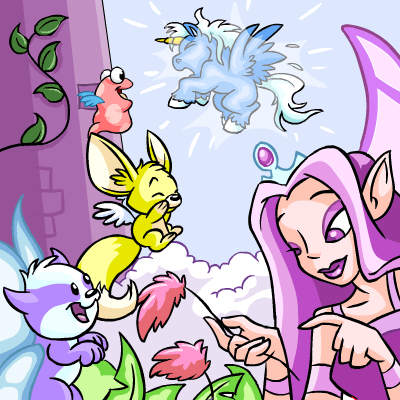
- Cut the part of the image you would like to use for your avatar. Click on the marquee tool found on the top menu. Choose the square one.

Drag your mouse and choose the part of the image you want!

- Click on edit=>cut. Click on edit=>paste as new image.
- On the top menu, click on layer=>resize current layer size by dimensions only. Then a window similar below should appear. Change the width and height to the size you want. For this tutorial I will be making a 100 x 100 avatar. Make sure the "bound width with height" is checked to have a perfectly square avatar.

- Now click on the "draw shapes" tool on your side bar and choose square. We will now be adding a border around our avatar.

- Choose the color of border you want by clicking on
 at the side bar menu. For this tutorial though I will leave it at black. My avatar now looks like this:
- Now to place our text. Click on your text tool, click on anywhere on the image then type your text. You will notice your text will be somewhat bigger than you want, so just drag the corners of your text to adjust the size. To place the text at the desired location go to your layer manager on the right of the screen and click on the hand tool. Be sure you are on the layer where you placed your text. Now, drag your text to the exact location you want.
This is how my workspace looks like:

- Next, clone your text by clicking on the clone option on the layer manager. Remember, we need frames to animate the avatar. Each layer represents a frame. We cloned the text to have some action. Now, we need to change the color of the cloned text by clicking on the arrow on the adjust color balance on the layer manager.

Scroll down and choose Color Replacement. A window similar to the one below should pop-up. Adjust the ones indicated on the image.

Repeat step 6 as many times as you want depending on how many colors you want your text to change. I'll make mine change into 3 colors!


- Now click on "GIF_Animation" option on the top menu and a window will pop up. You can preview your animation from this window by clicking on the play button on the right hand corner. At this moment my avatar would look like so:

Remember what we said earlier? Each layer is interpreted as a frame, we have 5 layers including the background. This is why we have this awful looking avatar. We need to get the number of layers right. To do this remove the merge of layers 0, 1 and 2.

You should have a much better animated avatar now. - To save your animation, click on the blue disk on the animation panel.


Labels: animation, photobie, tutorial
posted by Del @ 9:01 AM

0 Comments:
Post a Comment
Subscribe to Post Comments [Atom]
<< Home