

Sketched Images in Photoshop
Here's a simple tutorial on how to turn your colored images to sketched ones.
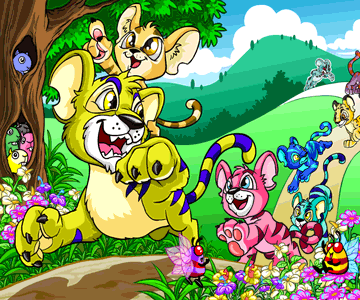
- Open the image you want to edit. Be sure your background is white. Make a new layer and paste the same image on Layer 2. For this tutorial, I will be using the image below:

- On Layer 2, select Color Dodge from the Layer Styles.

Once you have done this your image would look like this:

- Now, go to Layer 1 and desaturate your image.

Your desaturated image should look like this:

- Reverse the effect.

The image should look like this:

- Now, go to Layer 2 and desaturate. (see step 3)
- Go to Layer 1. Now click on FILTER >> Blur >> Gausian Blur.

Adjust the radius according to your taste. Just play with your image a little until you get the best result. I used 8 as the radius.
- Merge the layers. Click on LAYERS >> Merge Down. And now you have your sketched image!

Labels: photoshop, sketched images, tutorial
posted by Del @ 10:18 PM

0 Comments:
Post a Comment
Subscribe to Post Comments [Atom]
<< Home