

Making a Blog with GIMP
We are about to make a transparent/transluscent box like those on the blogs we have. We will be using the image below as our blog background.

- Open your GIMP. CLick on file=>new and the window below should appear. Set the width and height of your blog.

- Right-click the image above copy and paste it on your canvas. Go to your layers window and click on the "new layer" option as shown below:

After creating a new layer, the window should now look like so:

- Now, we need to make the textbox. First, create a layer for the textbox:

This window should pop-up. Place a layer name you desire and be sure that layer fill type is Transparency.

Your layer window should look like this:

- Then click on your main GIMP window click on the "select rectangular regions" and drag your mouse across the canvas for the textbox:

After making the selection for your textbox, your canvas should now look like so:

- It's time to place the textbox color. Click on your bucket tool and be sure to adjust all the elements highlighted in red boxes below:

Now, click on your selection. It should be filled with a transparent white color like so:

- Just add some texts or any effects to make your blog even prettier. I have made a sample blog. All effects were done on GIMP.
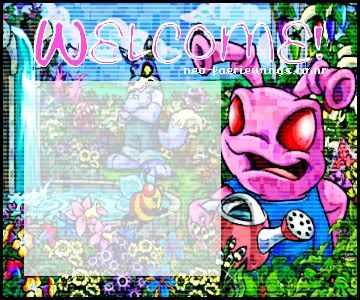
Labels: blogs, gimp, transparent blog, tutorial
posted by Del @ 9:46 AM

0 Comments:
Post a Comment
Subscribe to Post Comments [Atom]
<< Home