<!-- --><!-- --><style type="text/css">@import url(http://www.blogger.com/static/v1/v-css/navbar/697174003-classic.css); div.b-mobile {display:none;} </style> </head><body><script type="text/javascript"> function setAttributeOnload(object, attribute, val) { if(window.addEventListener) { window.addEventListener("load", function(){ object[attribute] = val; }, false); } else { window.attachEvent('onload', function(){ object[attribute] = val; }); } } </script> <iframe src="http://www.blogger.com/navbar.g?targetBlogID=20981690469561729&amp;blogName=Neo-Faerie+Wings%3A+Your+source+for+hig...&a mp;publishMode=PUBLISH_MODE_BLOGSPOT&amp;navbarType=BLACK&amp;layoutType=CLASSIC&amp;searchRoot=http%3A%2F%2Fneo-faeriewings. blogspot.com%2Fsearch&amp;blogLocale=en_US&amp;homepageUrl=http%3A%2F%2Fneo-faeriewings.blogspot.com%2F" marginwidth="0" marginheight="0" scrolling="no" frameborder="0" height="30px" width="100%" id="navbar-iframe" allowtransparency="true" title="Blogger Navigation and Search"></iframe> <div></div> Neo-Faerie Wings: Your source for high quality neopets graphics

May 13, 2010

Making a Divider with MS Paint

To make a divider, you need a template. Dividers can be short, long, fat, or thin, or any combination of those or anything else you can think of. To start off, I’m going to use this one

Copy and past the divider into paint, and then select a color you’d like for the background. I chose the pretty green outlined in red.

And this is how it turned out.

If you have PSP or adobe, you can put fancier designers or use MS Paint Resources from Neo-Faeriewings! I decided not to put one, but it doesn’t mean you can’t. Next, you have to find an image to add to your divider. This is optional, but it makes your divider look great. Anyways, go to the auction house or any other place like that on Neopets and chose an image. I went with a green Uni Morphing Potion. It should look similar to this.
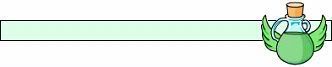
Now, if you have a web or something you’re making for, you can put your credit on. Otherwise, you can put your name or whatever on it. Here’s how mine turned out.

Now, upload your picture to Photobucket or TinyPic and enjoy!

Labels: , ,

Coding Blogs with MS Paint Help

Necessary Tools: 1 open window of MS Paint

Have you ever felt frustrated trying to put your textbox on the right place? If so, then this tutorial is for you. All you need is to open your blog on your MS Paint!

  1. Once you have opened your blog on MS Paint choose the "select" tool on your tools menu and drag your mouse across your textbox image!

    Make sure you're still holding your mouse down and look at the lower right hand corner of your screen. Can you see numbers? If so then we are both on the right track if not you must drag your mouse across your textbox again and be sure to look at your lower right hand corner. Notice that if you let go of your mouse the numbers disappear, so be sure you are holding down your mouse. Now, press "print screen" on your keyboard. Open another window of MS Paint. Click on Edit=>Paste.

  2. The two sets of numbers will help us with coding our blog. The first set determines the starting location of your textbox in the image, while the second set of numbers indicate the size of your textbox. Now, it's time to code our blog! Copy the code below and edit the following things:

    *Due to the changes on Neopets's filters, the code above cannot be used on shops or user lookups, but can still be used on your site and some other places on the net. To make it usable on Neopets, we just need to make the codes compatible to bypass Neopets's filters. Below is the code you can use. You will notice most of our position attributes are placed within the style tags.

    • The first set of width and height pertains to the width and height of your blog image.
    • Specify the background image URL.
    • Margin-left would be the value of X.
    • Margin-top would be the value of Y.
    • The second set of numbers would be the width and height of your textbox. In our example the width would be 231 and the height would be 171.
    • Edit your font color and font-family.
    • Edit your scrollbar colors.

put your text here!put your text here!put your text here!put your text here!put your text here!put your text here! put your text here!put your text here!put your text here!put your text here!put your text here!put your text here! put your text here!put your text here!put your text here!put your text here!put your text here!put your text here! put your text here!put your text here!put your text here!put your text here!put your text here!put your text here! put your text here!put your text here!put your text here!put your text here!put your text here!put your text here!

NOTE: You can use this to code your REDISTRIBUTABLE BLOGS BUT you must give credit to Neo-Faerie Wings. A link on your credits page would be fine! We hope this tutorial was helpful! ;)

Labels: , ,

Making Backgrounds with MS Paint

There are lots of ways you can make backgrounds with paint. You can make stripes, dots, checks and so on! All you need to have is a bit of an imagination. This tutorial will teach you how to make the basics!

Stripe Background

  1. Open your ms paint window. We don't need to have a big canvas to make a simple stripe background. Go to your image=>attributes and this window should pop-up:

    Change the width and height to mine or you can set your own width and height as you desire, depending on your background style.
  2. Now zoom in your canvas by clicking the magnifying glass on your side toolbar. I chose to magnify mine 6x!
  3. Now click on the rectangle shape. Choose the 3rd rectangle option, a full solid color with no borders!
  4. Now click on your color palette at the bottom of the screen. Click on the color you wish.
  5. Drag your mouse accross your canvas like so:
  6. Choose another color on your palette, then make another rectangle on your canvas. Do this numerous times, until you are satisfied with your stripe background. Save your image as JPG or PNG to retain color. This is how mine turned out!
    When coded into a background, it looks like this:

Dots Background

  1. Open a new canvas, make your width 25 pixels and your height 25 pixels as well.
  2. Click on your brush tool and select the first brush:
  3. Select the color you would like for your dots. Then, paint two dots on the canvas. This is how mine looks like zoomed 6x!
  4. Now, you have your background, mine turned out like so:

Checks Background

  1. Open a new canvas, make it 100 x 100.
  2. Choose your square tool. Slect the last square option.
  3. Choose the color you like for your background.
  4. Drag your mouse across your canvas. Make vertical and horizontal lines.
  5. Choose another color and do the same.
  6. My canvas looked like so, after making the lines in the colors I like:

    This is zoomed in 2X!
  7. Once you are satisfied with your work, save your background.
  8. Now, you have your background, mine turned out like so:

Labels: , ,

Taking Screen Shots with MS Paint

Necessary Tools: 2 open window of MS Paint

  1. First open the window you want to take a screenshot of:

    then press "F11", this will open up your window like this:

  2. Press "print screen" on your keyboard. That would be the key right after F12.
  3. Open a window of your MS Paint then click on Edit=>Paste. Now your window should look like so:

  4. We need to crop our image. Hold your Ctrl key and press the minus sign (-) on your number pad. Now you can see how your screen shot shrinked into proportional size.

    If you think that your screenshot is still big enough as a preview for your graphics press the minus sign again (-) while holding down the Ctrl key. Now your screenshot looks like this:

  5. Right-click on your image and click on cut. Open another MS Paint Window and click on Image=>Attributes. Adjust the width to 100 and height to 100 too. This will ensure that you won't need to crop the image once you've pasted your screenshot. Click OK.
  6. Now click on Edit=>paste. Your window should now be like the one below:

  7. Save your image as JPEG or PNG to retain color!

Labels: , ,

Transparent Blogs on MS Paint

Necessary Tools: 2 open window of MS Paint; MS Word

We will make a blog using the image below:

  1. Right click the image above, copy it and paste it on your MS Paint.
  2. Now, open another window of MS Paint by clicking on Start=>Programs=>Accessories=>Paint.
  3. On the second window click on Image=>Attributes and a window similar to the one below will appear.

    Set your width and height with the size of text box you wish to have for your blog. Then click on "Black and White" on the colors option.

  4. Now, look at your color palettes at the bottom of your window. It should appear like the image below.

  5. Click on your "Fill Color" tool and choose the black and white pattern you wish for your text box. I chose the one highlighted in red. Then click on your canvas.
  6. Click on your "Select" tool and choose the whole document. Right-click and cut your image.

  7. Go to your first MS Paint window where your image is. And click on Edit=>Paste. Be sure "Draw Opaque" is off. Then right-click on color black on the color palette to set your background to black.

    Drag your text box where you want to place it. Then click on anwhere on your image to make your text box fixed.

  8. Now, we need to add a border around your text box. Click on your rectangle tool and choose the first option given. Choose a border color you like by clicking on the color palette. I chose black to be my border. Now, your window and blog should look like so:

  9. Now, it's time to add our text on the blog. Open your MS Word. Click on "Insert Word Art" option, then a window like so will appear:

    Choose a style you want for your text and click OK. I chose the one highlighted in red.

  10. Now,this window will appear:

    Type your text and set the font and the size you want. Then click OK.

  11. Now right-click your text and click on "Show Word Art Toolbar". You must have your toolbar shown like this.

    Then click on the "Format Word Art" tool, highlighted in red on the image above. And this window will appear:

    Choose the color of your text by changing the fill color, and choose the color of your text border by changing the line color. Click OK.

  12. Now, take a screenshot of your MS Word by pressing "Print Screen" on your keyboard. Go to your 2nd MS Paint window you have. The one we used in making the text box earlier, NOT the one with our image or blog on. Click on "New". Then click on Edit=>Paste.
  13. Now, click on your "Select" tool and select your text. Be sure "Draw Opaque" is off as shown below:

  14. Paste it on your first MS Paint Window. Be sure "Draw Opaque" is still off. Then right-click on color white on your color palette to set the background to white.

    Drag your text where you want it placed on your blog. Then click anywhere on your image to make the text fixed.

  15. Now, all you have to do is to put a border around your blog. Click on your rectangle tool, choose the first option, choose a color for your border on the color palette and drag your mouse across your blog. And now, your blog is all finished! Save it as PNG or JPG to retain the color quality. See how mine turned out!

Labels: , ,

Splat Guild Layout with MS Paint

Now, you can make splat guild layouts without having to have PSP or Photoshop. All you need are MS Paint and MS Publisher which should be readily available! ;) To start, you need to have sets of good image packs. You can visit Smiley Helper for good image packs. In this tutorial I shall use some of Smiley Helper's image packs!

  1. Copy the image pack you like on your MS Paint. Click on the select tool to cut a single image.

  2. Paste it on your MS Publisher.

  3. The reason we placed it on MS Publisher is to recolor our image. Now right-click on the image and click on format picture. A window similar to the one below should appear!

    Click on recolor and this window should appear.

    Click on the arrow on color and choose more colors. Now, this window should popup!

    Choose a color you want your image to be! Click OK when you're done.
  4. Open a window of MS Paint. Take a screenshot of your MS Publisher window by clicking on "print screen" on your keyboard and pasting it on your MS Paint.
  5. Click on select tool and cut your image.
  6. Open a new window of MS Paint. Click on Image=>Attributes and set the width and height of the guild layout you want to make! I set mine to 600 x 600 pixels! Now, click on Edit=>Paste. Your image should now be on your guild layout canvas.

    Crop the image if desired. This is how my image looks like so far!

  7. Now, go back to your MS Publisher window and recolor your image with a new color or you can paste another image to recolor! Once you're done take a screenshot, paste it on your MS Paint window, cut your image and paste it on your guild layout canvas, be sure "draw opaque" is unchecked! This is how my image looks like after I've pasted my second recolored image!

    Repeat procedures until you have the right look you want. This is how my guild layout looks like after I've placed layers of images!

  8. It's time place some celebrity image on the guild layout. If possible, try downloading transparent PNGs from sites who have transparent PNGs. This will save you the trouble of trying to cut your images! I used one of the PNGs we have on the site. Go to your MS Publisher window, open your PNG image by clicking on the "insert picture" option on your picture toolbar.

    Your image will be automatically resized. To resize your image right-click on it and click format picture. A window will popup, click on size and set the height and width of the image to your preference!

  9. Now, take a screenshot of your MS Publisher window and paste it on MS Paint. Click on the select tool and cut your image. Paste it on your guild layout canvas, be sure "draw opaque" is unchecked! Now, just place the other essentials like transparent blog and texts! This is how my guild layout turned out!

I hope this tutorial was really helpful. Please link back if you think so and help us spread the word! :)

Labels: , ,

Shading with MS Paint

1. First, you will need Three pages of paint. Go to Start->Programs->Accessories->Paint. Then do it again, and again.
2. If you haven’t already then you need to find the picture you wish to made the “shading” over.

3. Now Copy and Paste the picture in to all paint windows.
4. On two of the paint windows go to Edit->Clear selection. That should remove the photo.
5. Now go to Image->Attributes. If you look at the bottom there will be a Colors choice. Change the Colors choice from Colors to Black and White.
6. Now that should make your color bar look different. Click the following color.Now use the Fill tool and fill the area.

7. Depending on what color you want the shade , fill the other blank paint window with that color.
8. Now Copy and Paste the shade template and paste it on the color. Make sure the Draw Opaque is off.
9. Image->Draw Opaque (it should be unchecked) and right click the color black to make it your background.
10. Now Copy and Paste this on to your picture. Save and you are done!

(the pictures are messed up when u resize them drag them into the addresse bar to see the real thing)
if u have any trouble email me and ill walk ya thro it - patches_05_94@yahoo.com

Labels: , ,